How to Check Your Connection to the Server Using WinMTR
In this article, we will explain how to use WinMTR.
- 1. Downloading and Installing WinMTR
Download the program archive from the provided link:
Extract the downloaded archive to any folder.
- 2. Using the Program
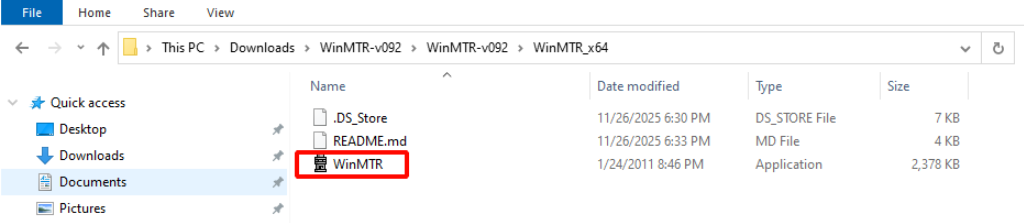
Run the "WinMTR" file from the folder \WinMTR-v092\WinMTR_x64.
Enter the server address in the "Host" field, then click Start.
Regional Game Servers:
| General |
s1.warface.ru |
|
Moscow |
global.ping.warface.ru |
|
Novosibirsk |
novosibirsk.ping.warface.ru |
|
Khabarovsk |
khabarovsk.ping.warface.ru |
|
Rostov-on-Don |
rostov.ping.warface.ru |
|
Astana |
astana.ping.warface.ru |
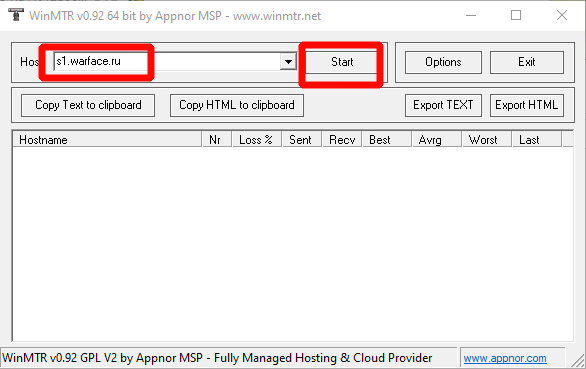
The program will start sending packets to each node on the path to the game server.
Please run the diagnostic for at least 30 minutes during a period when you are experiencing connection or hit registration issues in the game.
After the diagnostic has finished, close the game and press the Stop button, then click "Export TEXT". Enter a file name and click Save.
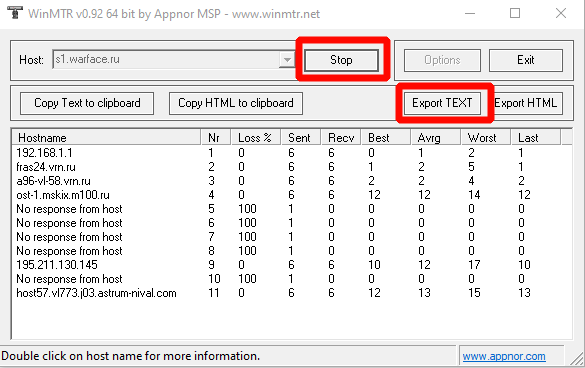
Save the file to any location on your computer.
You may send the report to your internet service provider or attach it to your inquiry submitted to Customer Support.
How to Interpret the Results:
Hostname - the IP address or domain name of each intermediate router on the path to the server.
№ - the hop number, starting from your router or your internet service provider's network gateway.
Sent - total number of packets sent to that hop.
Recv - total number of replies received from that hop.
Loss % - packet loss percentage at that hop.
Best - the best response time (ping).
Avrg - the average response time (ping).
Worst - the worst response time (ping).
Last - the response time of the last received packet.
If you see 100% packet loss on one or several intermediate hops (other than the last one), this means that the node does not respond to WinMTR requests. This is normal and not a cause for concern. If there is no packet loss on subsequent hops, it indicates that traffic is flowing without issues. However, if the loss is not 100% and continues on the following hops, this usually indicates an issue with your local ISP or a backbone provider along the route.
Latency may increase on one or several intermediate hops. If the latency returns to normal on subsequent hops, this is not a cause for concern and will not affect your gameplay. It simply indicates that a particular intermediate node is slow to respond, but packets still pass through without issues.